



Twitter Content Explorer
The Advanced Content Explorer in JarveePro allows you to collect and analyze targeted Twitter content, users, and engagement data like post links automatically.
This feature helps users discover relevant posts, accounts, and interactions based on specific search methods — without the need for manual browsing.
How to Create a Twitter Search Task
Step 1: Open Advanced Content Explorer
Go to Search Tools → Create Task → Only Search.
Step 2: Set the Basic Information
Task Name: Customize your task name or it will auto-generate (e.g.,
Twitter_SearchPostsByKeywords_20251020113515).Type: Select whether you want Search Only or Search and Generate Content.
Step 3: Choose Your Platform and Search Type
Platform: Select Twitter.
Search Type: Choose one based on your goal:
Search Posts by Keywords – Find tweets containing specific keywords.
Search Posts by Users – Find tweets from specific users.
Search Posts by Community – Find tweets from specific communities.
Search Comments by Post Link – Collect comments under a specific tweet.
Search Users by Keywords – Discover Twitter users by name or topic.
Search Followings – Retrieve accounts followed by a specific user.
Search Followers – Retrieve followers of a specific account.
Step 4: Add Search Keywords or Links
Use keywords to find broad content.
Use links for targeted searches.
Step 5: Optional Settings
Enable Real-Time Monitoring to keep updating results automatically (only available in JarveePro Monitor Version).
Adjust Monitoring Interval and Running Time Period as needed.
Step 6: Save Your Task
Click Save to start collecting the desired Twitter data.
Screenshot Example
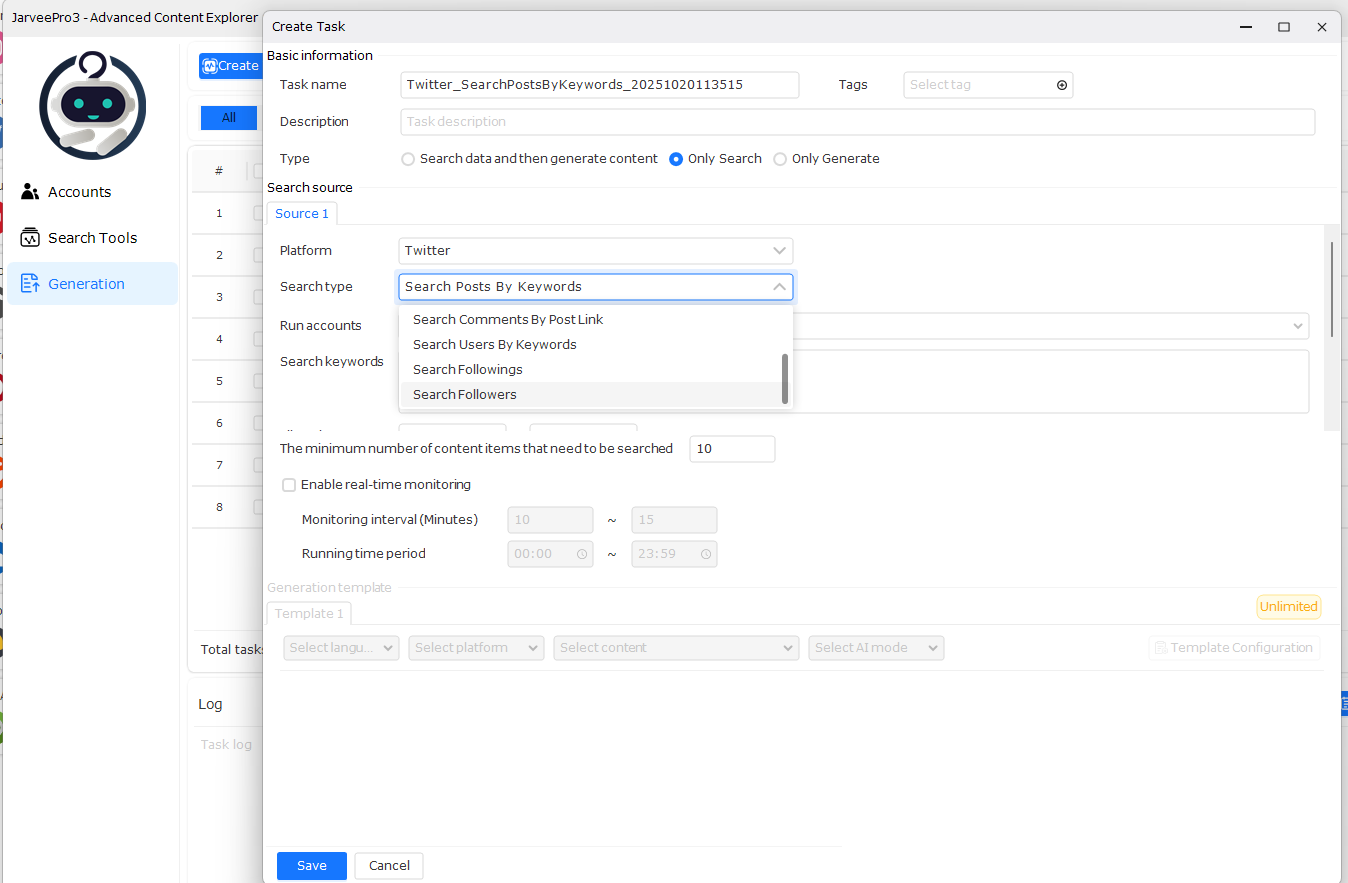
This example shows the dropdown for selecting Search Type under the Twitter platform. You can choose to search posts, comments, users, followings, or followers.
Use Case Example: Auto Like or Engagement Tracking
Scenario: You want to automatically like posts from accounts followed by a competitor or track engagement trends.
How to Set It Up:
Create a Search Task using Search Followings. Enter the competitor’s username.
Collect Data: JarveePro will retrieve all accounts they follow.
Integrate with Campaigns:
Add these accounts to Twitter Auto Like Campaign.
Configure actions such as liking their posts.
Benefit for Marketers:
Saves hours of manual research
Helps discover new audiences for engagement
Enables targeted interaction with high-value users
Steps to Retrieve Links from a Twitter Search Task
Go to Campaigns → Create Campaign → Like Tweet
You are already in the correct campaign type for auto-liking tweets.
Open the AI Content Generation Window
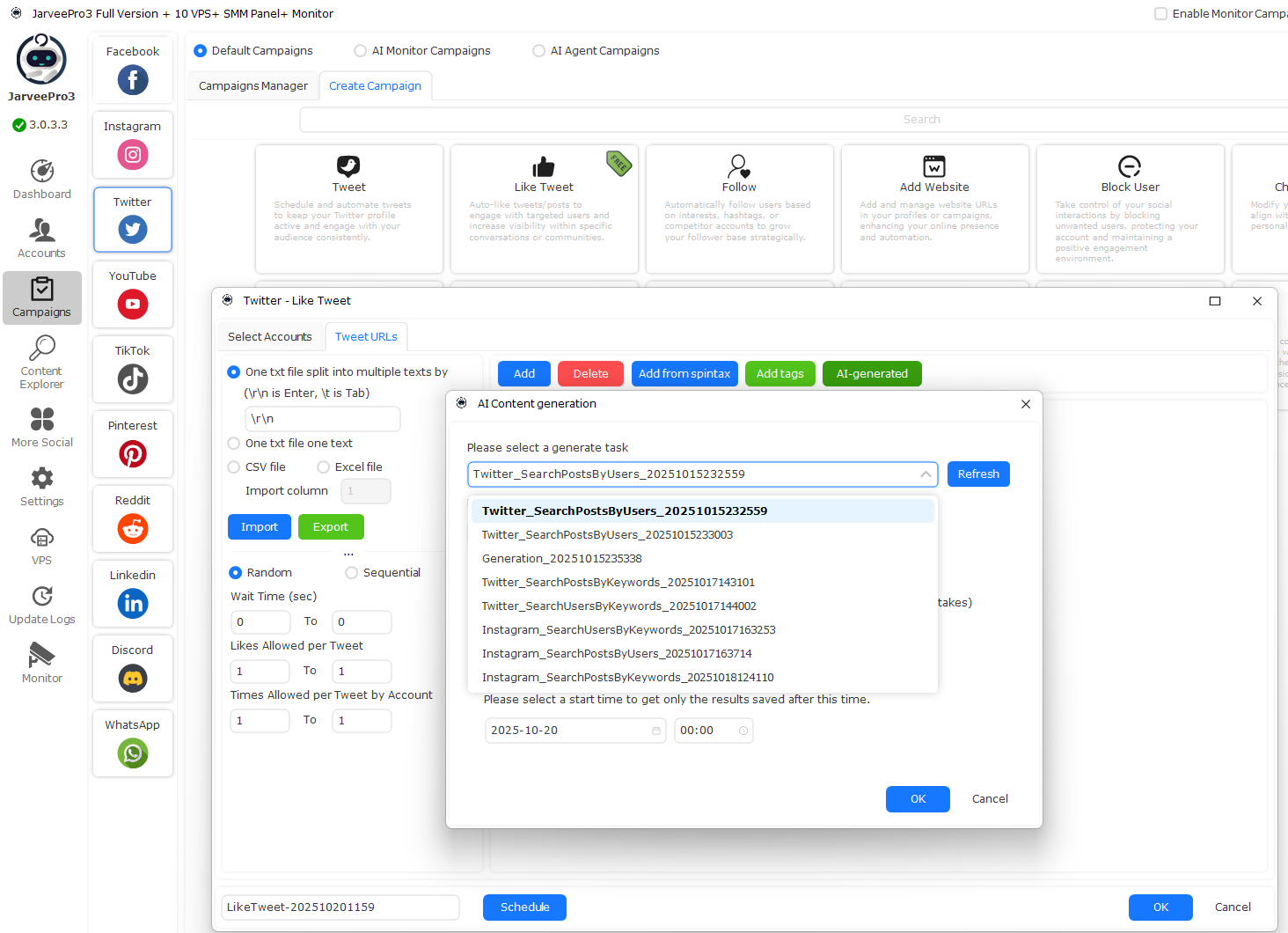
In the “Tweet URLs” tab, click AI-generated to open the AI Content Generation popup (as shown in your screenshot).
Select the Generate Task
Click the dropdown under “Please select a generate task”.
You’ll see a list of previously created search tasks, e.g.:
Twitter_SearchPostsByUsers_20251015232559Twitter_SearchPostsByKeywords_20251017143101etc.
Pick the Task You Want
Select the task that corresponds to the search you did (for example,
Twitter_SearchPostsByUsers_20251015232559if you were searching by users).
Set Start Time (Optional)
If you only want links collected after a certain date/time, adjust the Start Time field.
Click OK
JarveePro will pull the tweet links collected from that search task into your Like Tweet campaign.
You can now schedule likes or further actions on these links.